Nixtee Desktop quick start
Nixtee Desktop is a local workspace for designing, checking, searching and training neural networks. Keep your Python model, CSV dataset, generated candidates and training outputs in one folder, then move through the workflow from left to right.
What you need: an internet connection during first-run setup, a writable workspace folder, and a CSV file if you want to train. API credentials are required only for GNN validation and Search.
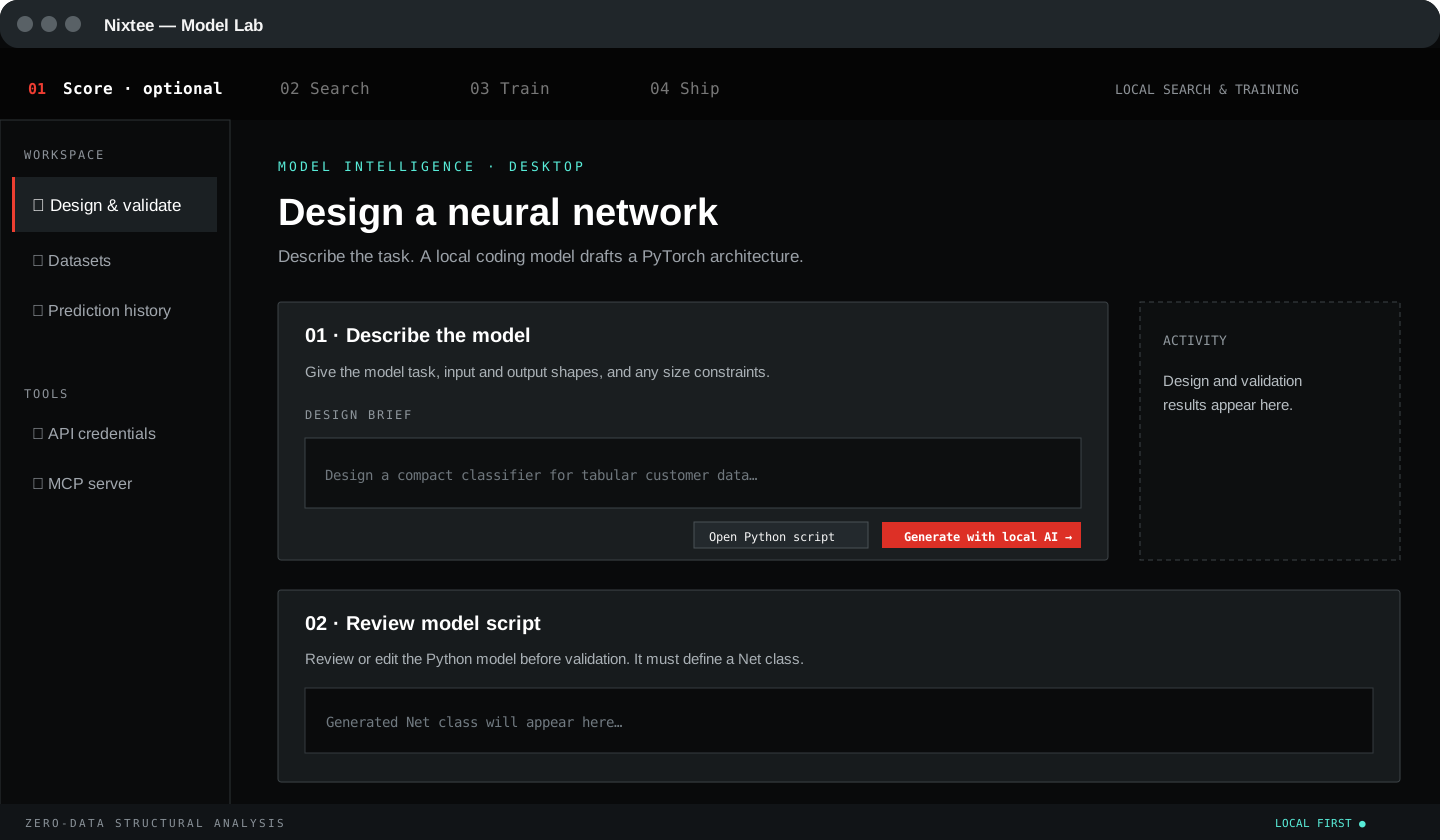
Your first model in five steps
| Step | Where | Result |
|---|---|---|
| 1 | Workspace | A single folder for scripts, datasets and outputs |
| 2 | Datasets | An active CSV and a selected target column |
| 3 | Design & validate | A Python model class named Net |
| 4 | Validate or Search | A GNN architecture estimate and suggested parameters |
| 5 | Train | Local epoch metrics and a saved checkpoint |
Install Nixtee
Download the installer for your operating system and processor from Nixtee Desktop downloads.
| Platform | Package | Install |
|---|---|---|
| Windows | .exe | Run the installer and follow the prompts. |
| macOS | .dmg | Open the disk image and drag Nixtee to Applications. |
| Linux | .AppImage | Mark it executable, then open it. |
For Linux, you can also run:
chmod +x Nixtee-1.0.5.AppImage
./Nixtee-1.0.5.AppImage
On first launch, Nixtee checks the local runtime and downloads the components needed for local design. This can take a few minutes. Keep the app open and allow network access until setup finishes; later design and training work can use the installed local runtime.
Subscription and API usage
In Account → Your subscription, select a plan and continue to Stripe's secure checkout. Stripe shows the recurring monthly price and payment confirmation. Returning to the website does not itself activate a plan; the account updates after the API receives verified payment confirmation. Use Manage subscription to update the payment method, change plans or cancel renewal.
A reminder email is sent before automatic renewal when billing is configured. If online payments are not configured, the account shows an availability message rather than a non-working card form.
API usage is measured in bytes of each JSON prediction request. Current monthly / rolling 5-hour allowances are Free 1 MB / 250 kB, Starter 20 MB / 5 MB, Pro 100 MB / 25 MB, and Team 500 MB / 100 MB (decimal units). The account shows the server's current limits; these can change by configuration. Expired paid access falls back to Free allowances. Reaching a limit returns HTTP 429; wait for the rolling window/month to reset or review your subscription.
Reset your account password
On nixtee.com, select Log In → Forgot your password?, then enter your account email. If an active account exists, you will receive a reset link. Check your spam folder if it does not arrive; wait at least one minute before trying again.
Open the latest link within 30 minutes, enter your new password twice, and select Save new password. Then log in with the new password. Each link works once; requesting a new link invalidates the previous one. If the link has expired or was already used, request another link.
Create a workspace and load data
Choose an empty or existing folder as the workspace. The Explorer in the left sidebar shows every model, dataset and output created there. Double-click a file to open it in the editor; use Cmd/Ctrl+S to save it.
Load a CSV dataset
- Open Datasets in the left navigation.
- Select Load CSV dataset and choose a file.
- Select the file in Active dataset.
- Choose the target or label column. If you do not choose one, Nixtee uses the final CSV column.
The active dataset gives the designer context, supplies the target for training, and is available to Search. CSV files remain in the workspace, so the model can be reproduced or shared with its data reference.
Tip: remove identifier columns such as
id, timestamps with no predictive value, and duplicated columns before training. Keep the label as a clear numeric or categorical column.

Design a model or open your own script
Open Design & validate and describe the model you want. Include the task type, what a row represents, and the expected output. For example:
Create a compact binary classifier for tabular customer-churn data.
Use numeric inputs and return one logit. Keep it small enough for CPU training.
Select Generate with local AI to create a Python file in the workspace. Nixtee automatically refines a response that does not contain a usable model class, then opens the completed script in the editor.
You can also choose Open Python script and work from an existing model. Nixtee expects a class named Net. The built-in editor supports tabs, Python syntax highlighting, autocomplete, unsaved-change indicators and standard save shortcuts.
A minimal model contract
Your file should contain a PyTorch class named Net with a forward method. Nixtee reads the architecture from that class before it validates or trains.
import torch.nn as nn

class Net(nn.Module):
    def __init__(self, input_size=10):
        super().__init__()
        self.layers = nn.Sequential(
            nn.Linear(input_size, 32),
            nn.ReLU(),
            nn.Linear(32, 1),
        )

    def forward(self, x):
        return self.layers(x)
Validate, Search, then train
Nixtee has two routes after you save the model. You can run the local path immediately, or ask the GNN service to estimate the architecture first.
Validate architecture
Open API credentials and enter your Nixtee API key and secret. Then select Validate architecture. Nixtee sends only the model graph and search settings to the GNN service; your CSV stays on your computer.
The result can include estimated accuracy, latency and recommended training parameters. Validation is an estimate to compare candidate architectures, not a replacement for measured training results.
Search
Select Search to run an iterative design loop. Nixtee creates candidate models, validates each candidate with GNN, keeps the best score, and opens the selected model when it completes. Search works whether or not you first ran the separate Validate action.
Use Search when you want to explore alternatives. Use Validate architecture when you only need a fast estimate for the script already open.
Continue and Train
Select Continue to skip GNN validation and begin local training. Training uses the active CSV and target choice, displays loss and relevant metrics by epoch, and saves outputs in the workspace.
| Action | Requires API credentials | Uses local CSV | Purpose |
|---|---|---|---|
| Validate architecture | Yes | No upload | Estimate a saved architecture |
| Search | Yes | No upload | Score and refine candidates |
| Continue | No | Yes | Start training immediately |
| Train | No | Yes | Measure real training metrics |

MCP connections
Desktop 1.0.5 and CLI 0.9.13 include MCP SDK v2, OAuth, OS-keychain credentials, per-tool approvals and isolated MCP model evaluation. Install the current desktop build from Nixtee Desktop downloads. For CLI use, Python 3.11 or later is required:
python -m pip install --upgrade https://nixtee.com/downloads/nixtee_cli-0.9.13-py3-none-any.whl
MCP works in two directions:
| Connection | What it enables |
|---|---|
| Nixtee → external MCP server | Discover tools, read resources and resource templates, and use their results when designing or refining a model. |
| Codex → Nixtee | Call Nixtee dataset and prediction tools through a private stdio process scoped to the selected workspace. |
Connect an external server
- Open Tools → MCP connections → External servers for Qwen.
- Enter a name and choose Streamable HTTP, legacy SSE, or Local process (stdio).
- For network servers, enter the complete endpoint URL. Remote servers require HTTPS; HTTP is allowed only on loopback, such as
http://127.0.0.1:9000/mcp. Do not put credentials or query parameters in the URL. - For stdio, use an executable path, one argument per line and an optional working directory. Adding/testing a stdio connection launches that executable with your user privileges: use only trusted servers.
- Select None, Bearer token or OAuth authentication. Bearer tokens, custom authentication headers and stdio environment secrets are stored in your OS keychain, not in the configuration file.
- Select Add connection. For OAuth, use Connect / Login to open the provider's login page, then Test connection. The test discovers capabilities; it does not invoke tools or test the Nixtee API.
- Submit a new design or refinement request. Nixtee asks for approval before each external tool invocation or resource read. Tool permissions can preapprove exact tool names or resource reads for a trusted server. Leaving permissions empty keeps approval enabled for every call.
An external server's own read-only annotation does not grant permission. You can deny a requested operation in the native approval dialog. Cancel in the activity panel stops the current CLI operation; cancellation cannot undo an action already performed by an external service.
Upgrade existing MCP connections
Existing connection metadata stays in ~/.nixtee/credentials and is shared across workspaces. If a connection previously stored plaintext headers or env, use Move credentials to OS keychain before connecting. Keep the macOS Keychain, Windows Credential Manager or Linux Secret Service available and unlocked; Nixtee does not fall back to plaintext storage.
Use Tool permissions after upgrading: existing connections now ask before tool calls unless you explicitly preapprove them. OAuth login happens only through Connect / Login; model requests may refresh existing grants but cannot silently open new browser login flows.
Connect the workspace to Codex
- Choose the intended workspace, then open Expose Nixtee to Codex.
- Start the local server and wait for Running. This selects the Python runtime and confirms the workspace.
- Set a Codex server name and select Connect Codex, or use Copy command if the Codex CLI is unavailable to the app.
- Reload Codex's MCP connections and try
list_datasets.
The saved Codex connection uses a private stdio process, not the local HTTP URL. It does not contain a token and can run independently of the desktop window. Conflicting registrations are preserved: remove an old HTTP registration yourself or use a new name before connecting. To change a saved workspace, register a new connection with that workspace.
For a CLI installed on your PATH:
codex mcp add nixtee -- nixtee mcp --transport stdio --workspace /absolute/path/to/workspace
codex mcp list
Prepare the MCP prediction sandbox
The MCP predict_performance tool no longer evaluates submitted Python in the host process. Install Docker with Linux-container support, start its engine and build the offline runtime once using the installed CLI:
python -m nixtee_mcp_sandbox --build-image
This command builds nixtee-mcp-sandbox:1 locally and downloads Python/PyTorch dependencies. Evaluation itself has no network, host home, workspace or API credentials; only the model source and temporary graph output are mounted. Runtime is capped at 45 seconds, with CPU, memory, process and output limits. If Docker or the image is unavailable, MCP prediction fails without executing model code on the host. Keep Docker and the sandbox image updated.
After isolation returns a valid architecture graph, the host sends it to the Nixtee GNN service using your configured API credentials. Ordinary local training of user-selected Python remains a trusted-code workflow and does not use this MCP sandbox.
HTTP clients and CLI administration
Private stdio is preferred for local clients. For clients requiring HTTP, set a strong NIXTEE_MCP_TOKEN of at least 32 ASCII characters in the server environment and configure the same Bearer token in the client. Never place it in a URL or shell argument. Then run:
nixtee mcp --transport streamable-http --port 8000
# For older clients only:
nixtee mcp --transport sse --port 8000
Network servers bind to 127.0.0.1, require authentication and validate Origin/Host. Electron generates its own temporary HTTP token and never exposes it in renderer state or a copied command. /mcp start in the interactive CLI now starts authenticated Streamable HTTP, not unauthenticated SSE.
The same connection controls are available in the terminal:
nixtee mcp-connections list
nixtee mcp-connections add --name research --url https://example.com/mcp --auth oauth
nixtee mcp-connections login SERVER_ID
nixtee mcp-connections test SERVER_ID
nixtee mcp-connections permissions SERVER_ID --allow-tool search
nixtee mcp-connections permissions SERVER_ID
nixtee mcp-connections migrate SERVER_ID
nixtee mcp-connections remove SERVER_ID
Omitting --allow-tool revokes all preapprovals. --auth bearer prompts for a hidden token; --header NAME and --env NAME prompt for hidden secret values. Refresh server IDs after editing permissions.
Available tools and limits
| Tool | What it does |
|---|---|
list_datasets | Lists CSV files directly in the workspace. |
predict_performance | Evaluates a PyTorch Net in the offline sandbox, then requests GNN scoring using account quota. |
search_hf_datasets / search_kaggle_datasets | Searches provider datasets, up to 100 results. |
download_hf_dataset / download_kaggle_dataset | Downloads datasets into the workspace with no overwrites and bounded archive extraction. |
Per model turn, Nixtee allows 16 servers, 256 exposed operations, 8 rounds, 24 calls, 256 KiB per result and 1 MiB of cumulative result content. Tool requests have a 60-second timeout and the turn has a 180-second deadline. Downloads are limited to 100 MiB; archives to 1,000 entries and 250 MiB expanded content. Traversing paths, symlinks, duplicate destinations and overwrites are rejected.
The official SDK negotiates the current 2026-07-28 protocol and older compatible clients/servers. Resource-only servers are supported. Failed tools return proper MCP error results; audit events show operation status without logging arguments or secrets.
Read results and keep improving
Training metrics describe what actually happened on the selected data. Compare them with the GNN estimate, then edit the model or adjust the data and train again. Save the model alongside its CSV, generated candidates and training outputs to keep every experiment traceable.
Troubleshooting
“Nixtee rejected the API credentials”
Open API credentials, enter both the key and secret again, save, then retry. Validation and Search need an active Nixtee account; Continue and local training do not.
“The model graph is invalid”
Open the model in the editor and confirm it defines a Net class that can be constructed without custom runtime arguments. Remove incomplete layers, unsupported imports and code outside the model definition, then save and retry.
“The architecture is too large for GNN validation”
Simplify the model before validating it. Reduce repeated blocks or layers, or skip validation with Continue and train locally.
Setup keeps checking local AI
Leave the application open until setup has completed the first download. If it does not proceed, restart Nixtee with an active internet connection. Existing local components are detected on the next launch.